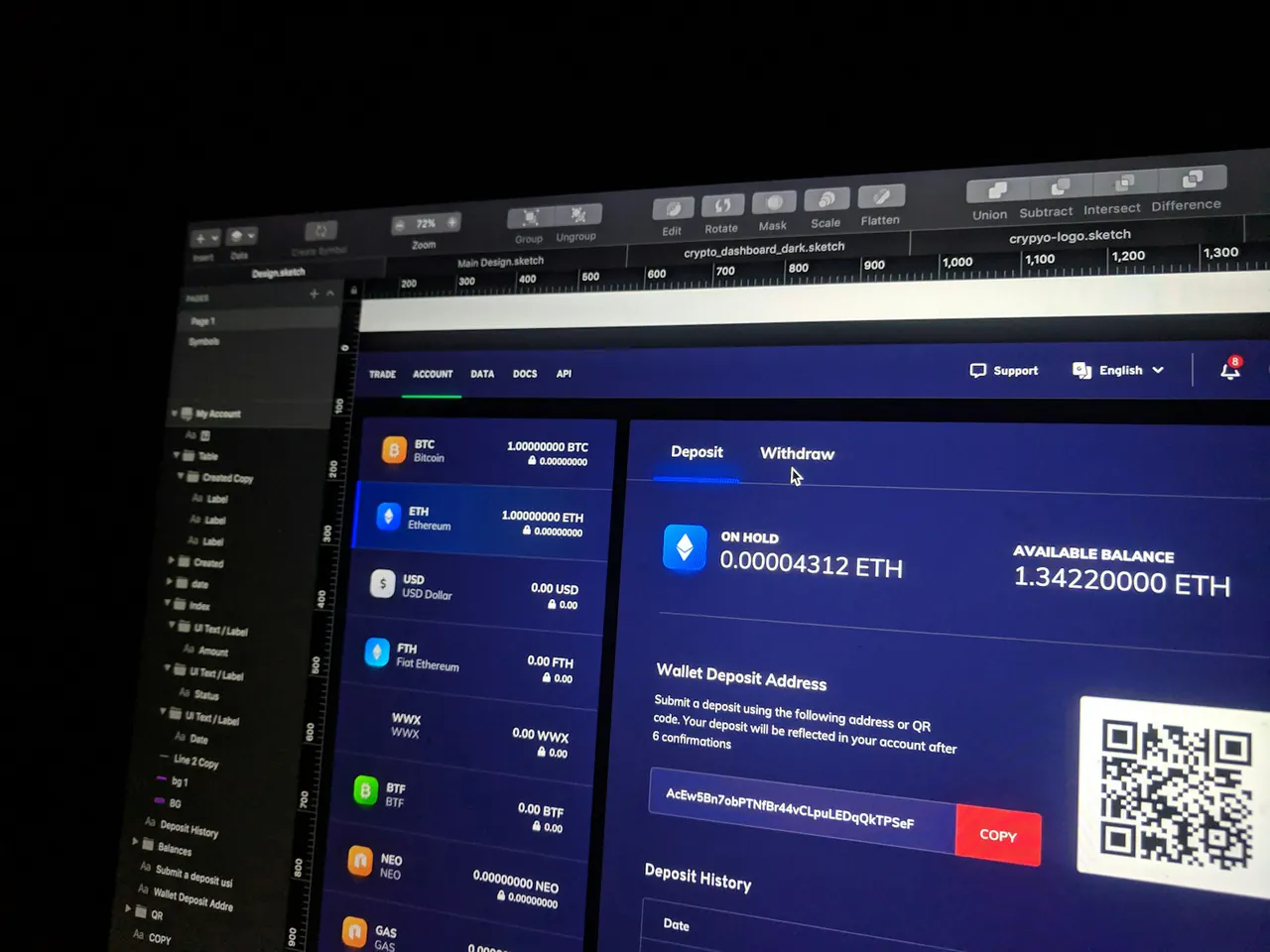
A readable screenshot can still contain an unusable interface
Accessibility reviews often begin with color contrast because it is visible and easy to discuss. Contrast matters, but a screenshot cannot show whether a person can reach a control, understand an error, dismiss a dialog, or keep focus in view. A page can look calm and readable while blocking a keyboard user at the first interaction. The practical design task is to review the experience over time and across input methods, rather than treating accessibility as a final color correction applied to a finished composition.
WCAG 2.2 includes criteria concerning target size and focus that is not obscured, with detailed W3C explanations of intent and exceptions. Those documents are technical references, not a shortcut to declaring an entire website compliant. This guide develops a bounded review of a hypothetical event-registration flow. It does not report a completed audit, provide a legal compliance opinion, or claim that the checks below cover every requirement. Read the target-size explanation and focus guidance.
Define the journey you are reviewing
Choose a task with a clear beginning and outcome. For registration, that might include selecting an event, entering details, reviewing the summary, correcting an error, and receiving confirmation. List the page states and third-party components involved. A review confined to the first screen can miss the point where the user actually becomes stuck. Define which browsers, devices, and assistive technologies are in scope and record what remains outside it. A bounded review is useful when its boundary is explicit.
Map the information needed at each step. The user should know what is required, what can be changed, and what happens after submission. If the service has a time limit or an irreversible action, that behavior belongs in the design discussion early. Accessibility problems can arise from the structure of a process, not just the markup of a field. A clear task map helps the team see when reducing steps or improving explanations may be more valuable than restyling the same complex flow.
Walk the entire task with a keyboard
Start from a fresh page load and use the keyboard to move through controls. Observe focus order, visibility, activation, and the ability to leave components. Open navigation, change a selection, trigger validation, and close any overlay. Write down the exact point where behavior becomes confusing or unavailable. A control that can be reached but not understood is still a problem. A control that appears only on hover may be missing from the keyboard experience even when the underlying link technically exists.
Do not repair a strange focus order by adding arbitrary positive tabindex values without understanding the document structure. The visual and reading order should be considered together. If a floating action appears before its context in the document, a layout revision may be the appropriate fix. The keyboard walkthrough is a diagnostic exercise, not a race to make the tab key touch every visible object. Meaningful order and predictable behavior matter more than the raw number of focusable elements.
Keep focus visible when the page changes
Sticky headers, cookie notices, chat widgets, and bottom action bars can cover the element a person is using. Test focus after scrolling, opening a panel, and changing viewport size. The W3C focus-not-obscured explanation provides the relevant criterion and examples, including the distinction between minimum and stronger expectations. Use the reference to understand the requirement rather than inventing a rule from one screenshot. Record the actual overlap and the state that causes it so the issue can be reproduced.
When a dialog closes, consider where the user should continue. Returning focus to the trigger is often appropriate, but the right behavior depends on the interaction and whether the trigger still exists. A disappearing control can leave the user without a useful position in the task. Test the sequence rather than only the open dialog. Accessibility is often determined by these transitions: what changes, what is announced, what remains available, and whether the user can recover their place without starting again.
Review target size in context
Small icons and tightly packed controls can be difficult to activate accurately. Examine the actual clickable area, spacing, and context, not just the visible glyph. A large symbol inside a small hit area can still be awkward, while a compact inline link may be subject to a different exception under the relevant criterion. Consult the W3C explanation for the precise conditions. Do not flatten a detailed standard into a slogan that every visible object must have the same dimensions in every context.
For the registration example, inspect date navigation, attendee quantity controls, remove buttons, and links beside fields. Try them on a phone with realistic content and zoom. Avoid interpreting your own successful tap as evidence that the interaction works for everyone. Record near misses and ambiguous neighboring actions as design observations. The aim is to reduce unnecessary precision demands while preserving a clear relationship between the control, its label, and the consequence of activating it.
Make labels survive real use
Use persistent labels that remain available after a person begins typing. Placeholder text can provide an example, but it disappears and should not carry the entire explanation of a field. Check whether a label communicates the expected information without relying on layout alone. If two date fields appear side by side, the relationship should remain clear when they stack on a narrow screen. A form should not become a memory test after the first character is entered.
Distinguish required information, optional information, and format guidance in a consistent way. Do not rely only on a color or a symbol whose meaning is explained far away. Read the field sequence aloud or inspect it through an appropriate screen-reader workflow to identify missing context. This does not replace specialist testing, but it can reveal that a beautifully aligned form depends on visual proximity the underlying structure does not express. Good visual design and meaningful structure should reinforce each other.
Design errors as part of the task
Trigger the errors a real person could encounter: a missing value, an unavailable choice, an invalid format, and a service failure. Explain what happened and how to correct it without erasing information unnecessarily. A generic red border is not a complete message. Neither is an alert that disappears before the person can read it. Consider a summary that connects to the relevant fields and a clear way to resume. The user should understand whether anything was submitted and what remains to be done.
Avoid blaming language and instructions that assume one interaction method. Click the red box may be unhelpful to someone using a keyboard, a screen reader, or a display where the color is not distinct. Name the field and the required correction. Keep the message specific to the error. If the service is unavailable, do not ask the person to change an already valid answer. A useful recovery path respects the information they entered and the uncertainty created by the failure.
Test content expansion and zoom
Use longer names, translated labels, larger text, and a narrower viewport. Check whether panels overlap, text is clipped, or controls become unreachable. A layout that only works with the designer's shortest sample is not a robust interface. Review the reading sequence when columns collapse and whether important explanations remain near the associated action. Screenshots at one desktop width can conceal these problems because the content has been arranged to fit a favorable frame.
Do not treat every overflow as a reason to shrink the text. The component may need to wrap, the action group may need a different layout, or the content may need a clearer hierarchy. Preserve the user's ability to read and operate the interface. A practical review records the combination of viewport, text setting, and content that produces the issue. That evidence helps implementation teams repair the actual constraint instead of applying a one-off adjustment that breaks at another size.
Combine automated checks with human review
Automated tools can identify useful classes of issues, but they cannot establish that the complete task is understandable and operable. Use them to support a review plan, not replace it. Keep findings connected to the page state and user impact. A long list of warnings is less useful when the team cannot tell which are confirmed barriers and which require investigation. Prioritize reproducible problems and document what the tool did not examine.
Include people with relevant access needs in research when the study and recruitment support it. Do not assume that one person's experience represents all assistive-technology users. Record the context and avoid overstating coverage. A specialist audit and usability research can answer different questions, and both may be valuable. The design team should understand the role of each activity so a successful task session is not presented as technical conformance and a clean automated scan is not presented as proof of usability.
Turn the review into maintained design decisions
Create an issue record with the task, state, reproduction steps, observed barrier, relevant reference, proposed change, and verification method. Assign ownership across design, content, and implementation. Many issues cross those boundaries. A label change can require a content decision, while focus behavior requires code and a component rule. The review should produce a set of concrete repairs and reusable lessons, not a separate accessibility document that nobody consults when the next feature is built.
Accessibility becomes more durable when it is part of ordinary design critique and release checks. Inspect the whole journey, include transitions and recovery, and use standards precisely. A site can retain a distinctive visual identity while making its actions easier to perceive and operate. The goal is not a claim based on a polished screenshot. It is an experience whose important tasks remain available to more people under the conditions in which they actually use it.